Humans spent millions of years perfecting the opposable thumb. This is arguably the single anatomical feature most responsible for our mastery of tools, fire, and eventually software. Yet in 2026, most developers use this evolutionary marvel for exactly one thing: the spacebar.
There is a better way!
This post explains how integrating a 12-button gaming mouse into your daily development workflow reduces context-switching overhead, keeps your hands in position, and builds the kind of muscle memory that makes repetitive tasks nearly invisible.
What Is a 12-Button Gaming Mouse?
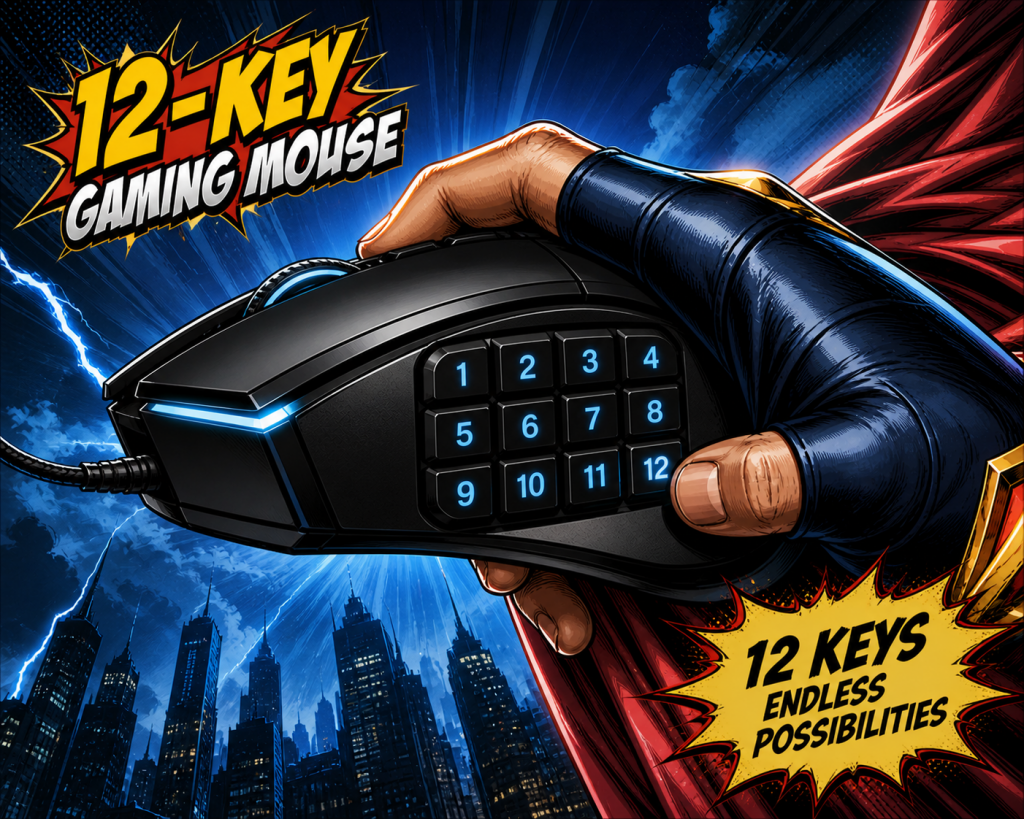
Originally designed for MMO games, 12-button mice (also called 12-key or MMO mice) feature a grid of twelve fully programmable buttons on the thumb panel. Popular models include the Logitech G600, Razer Naga, and Corsair Scimitar.
What makes them effective for developers:
- 12 programmable side buttons accessible without moving your hand off the mouse
- Multiple layers and profiles. Remap the same buttons for IDE, terminal, or browser contexts
- On-device memory. Settings follow the mouse to any machine, no driver install required
- Driver support on Windows, macOS, and Linux
Hardware cost: typically €50 to €100. The productivity return is considerably higher.
A Practical Starting Layout
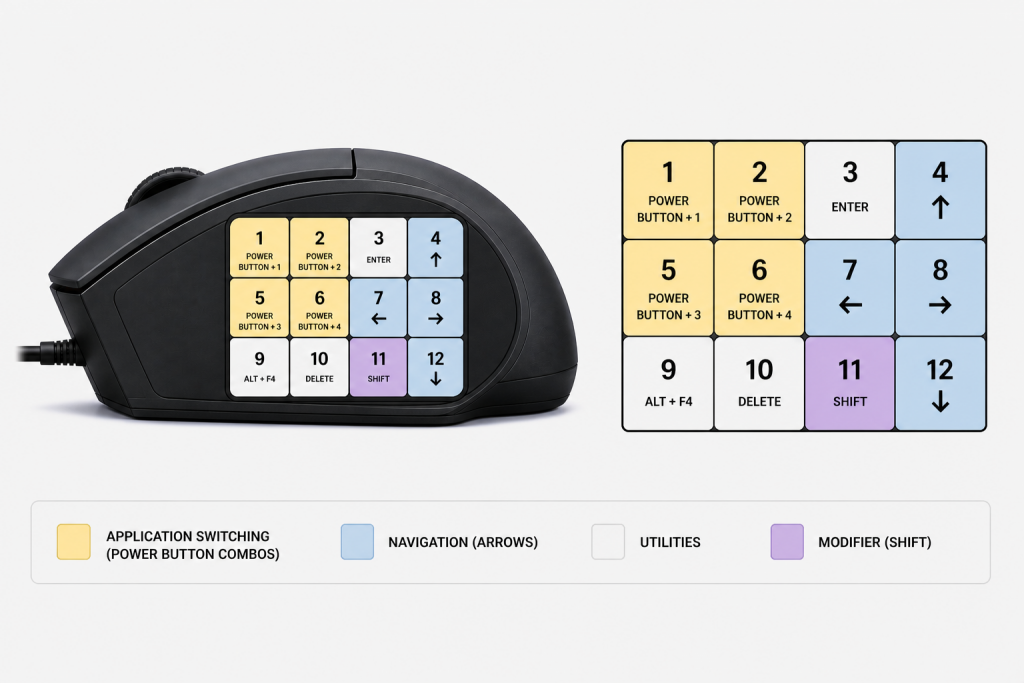
The layout below is a general-purpose foundation. No application-specific overrides, just a solid everyday base. Once this feels natural, you can add layers for specific tools.
What This Unlocks in Practice
Application switching without the Alt+Tab lottery
Buttons 1, 2, 5, and 6 each map to a fixed application. One thumb press and your IDE, browser, terminal, or Slack is in the foreground. No hunting through a stack of open windows, no visual scanning, no interrupted train of thought.
A side effect most developers notice after a few weeks: they naturally stop using a second monitor. When every key application is a dedicated thumb press away, additional screen real estate stops feeling necessary.
Navigation that keeps your right hand on the mouse
Buttons 4, 7, 8, and 12 expose arrow keys directly on the mouse. Combined with Button 3 (Enter), you can navigate IntelliJ’s tree view, step through wizard dialogs, and move through file structures without touching the keyboard at all.
The pattern becomes: right hand owns the mouse, left hand owns keyboard shortcuts. The constant micro-movement of repositioning your right hand between keyboard and mouse disappears.
Horizontal scrolling without the hunt
Button 11 (Shift) held while scrolling the wheel switches to horizontal scrolling. Wide code files, long log outputs, and deep stack traces. All scrollable without reaching for a horizontal scrollbar.
Because Shift sits at the thumb’s most natural resting position, switching modes feels like a natural gesture rather than a deliberate action.
Muscle memory for dialogs and wizards
Confirmation dialogs, setup wizards, and IDE prompts all follow predictable patterns. With Enter on Button 3 and arrow keys clustered around it, stepping through them becomes a reflexive sequence rather than a conscious task.
This is where the real cumulative benefit lives and not in dramatic single-action speedups, but in eliminating dozens of small interruptions per hour.
The Adjustment Period
Expect one to two weeks before the layout feels automatic. Days one through three involve occasionally glancing at the buttons. By week two, the actions are reflexive. A few things that accelerate the process: –
- Map your four most-used apps first. Get application switching automatic before adding anything else.
- Use small sticky labels on the buttons for the first week if it helps.
- Stay on the default layer only. Add application-specific layers once the base is second nature.
- Don’t remap everything at once. Introduce new buttons as you need them, not all at the start.
Who Benefits Most
This setup is particularly effective for:
- Backend and fullstack developers who cycle between IDE, terminal, and browser constantly
- Engineers who navigate large codebases, logs, and tree-heavy interfaces regularly
- Anyone who reaches for Alt+Tab more than a few times per hour
It is less immediately valuable for roles with highly varied or unpredictable input patterns, or for anyone primarily working on a laptop without an external mouse.
Closing Thoughts
After a few weeks of using this layout, the benefit becomes clear.
- No need for a second monitor
When every important application is mapped to a dedicated button and can be brought to the foreground instantly, you naturally stop using more than one monitor.
Context switching becomes immediate, reliable and natural. - Right hand stays on the mouse
The right hand only leaves the mouse when writing new code or text.
For editing, moving, deleting, and navigating, everything happens directly on the mouse or on the left hand. - Faster workflows through muscle memory
Repetitive actions like navigating dialogs or wizards become automatic and extremely fast. - Efficient navigation
Having arrow keys under the thumb enables quick movement through tree views, IDEs, and structured interfaces. - Smooth and fluent horizontal scrolling
With Shift mapped to the natural thumb position, switching to horizontal scrolling feels seamless and fluid, especially useful for wide code files, logs, and long stack traces.
A 12-button gaming mouse is a small hardware investment with a disproportionate workflow return. It will not write better code. What it does is remove the friction between your intentions and your actions and when navigation, window management, and dialog interaction become reflexive, your attention stays where it should: on the problem you are actually solving. After a few weeks with this layout, the most common reaction is not excitement about the mouse itself. It is mild irritation every time you have to work without it.